Stop Losing Your tmux Layouts: A Simple Tool to Save and Restore Your Terminal Setups

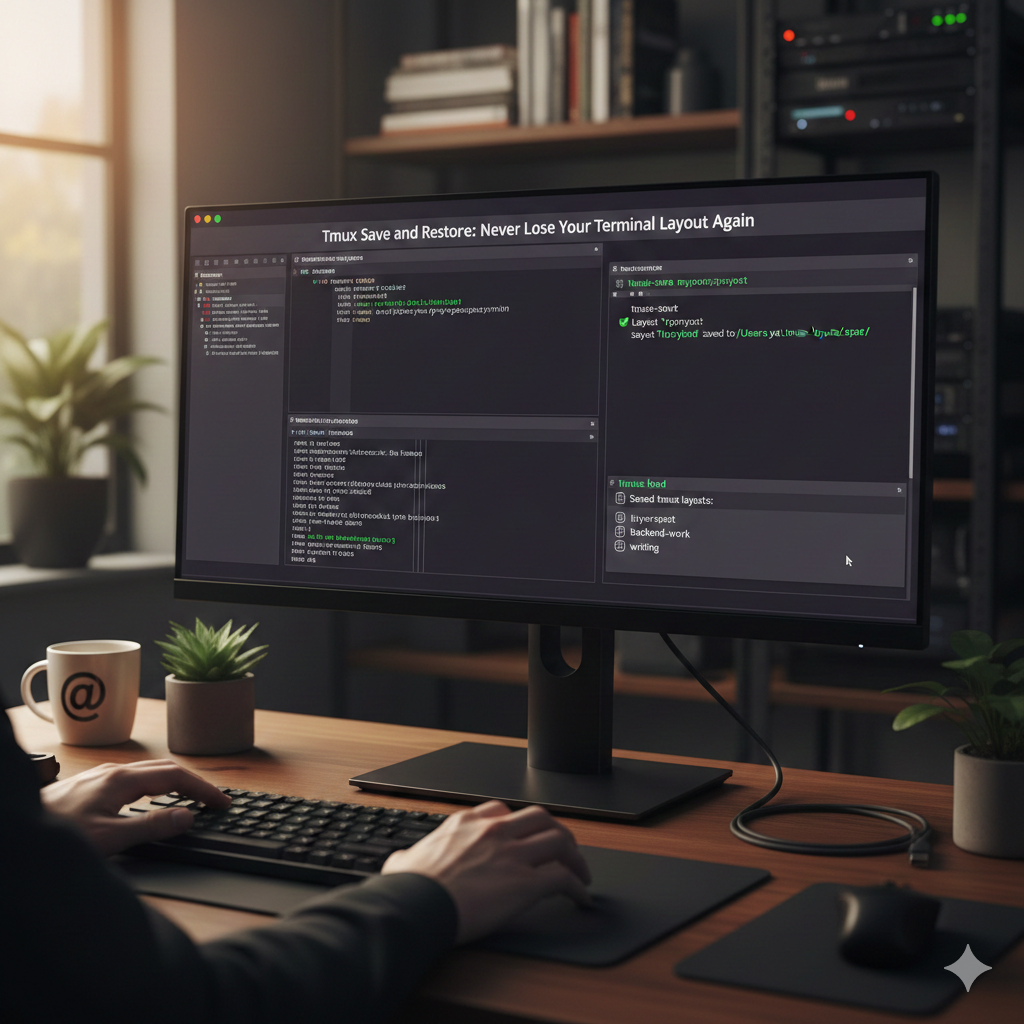
If you're a tmux power user, you know the pain. You've spent time crafting the perfect workspace—multiple windows for different projects, panes split just right, each one positioned in its correct directory. Then your computer restarts, or you close the terminal by accident, and it's all gone.
What if you could snapshot your entire tmux setup and restore it with a single command?
That's exactly what this toolkit does.
The Problem with Tmux Sessions
Tmux is incredible for managing terminal workflows. It lets you:
- Create multiple windows within a single terminal
- Split windows into panes
- Detach and reattach sessions
- Keep processes running in the background
But here's what tmux doesn't do well: persistent layouts.
Sure, you can detach a session and it keeps running. But what about:
- Saving a layout to use on a different machine?
- Keeping multiple layout configurations for different types of work?
- Recovering your setup after a reboot?
- Sharing your workspace configuration with teammates?
That's where these scripts come in.
The Toolkit: Three Simple Commands
This toolkit consists of three bash scripts that work together:
| Command | Purpose |
|---|---|
tmux-save |
Save your current tmux session layout |
tmux-load |
Restore a previously saved layout |
tmux-list |
View and manage your saved layouts |
All layouts are stored in ~/.tmux-layouts/ as simple, human-readable files.
Installation
- Clone or copy the three scripts to a directory in your PATH:
# Option 1: Copy to /usr/local/bin
sudo cp tmux-save tmux-load tmux-list /usr/local/bin/

# Option 2: Add the script directory to your PATH
echo 'export PATH="$PATH:/path/to/tmux-tools"' >> ~/.bashrc
- Make them executable:
chmod +x tmux-save tmux-load tmux-list
That's it. No dependencies beyond bash and tmux itself.
How It Works
Saving a Layout: tmux-save
When you run tmux-save, it captures:
- Every window in your current session (name and layout)
- Every pane within each window (position, working directory, running command)
- The exact layout geometry so panes are restored to the same proportions
Usage:
# Save with a specific name
tmux-save myproject

# Or run without arguments to be prompted for a name
tmux-save
# Enter a name for this layout: myproject
Output:
✅ Layout 'myproject' saved to /Users/you/.tmux-layouts/myproject.layout
What gets saved (example layout file):
# tmux layout: myproject
# saved: Thu Feb 6 17:30:00 PST 2026
# session: dev

WINDOW|0|editor|a]f6,208x54,0,0{104x54,0,0,1,103x54,105,0,2}
PANE|0|0|/Users/you/projects/myapp|nvim
PANE|0|1|/Users/you/projects/myapp|zsh
WINDOW|1|servers|5b23,208x54,0,0,3
PANE|1|0|/Users/you/projects/myapp|npm
WINDOW|2|logs|5b24,208x54,0,0,4
PANE|2|0|/var/log|tail
The format is intentionally simple. You can even edit these files by hand if needed.
Loading a Layout: tmux-load
Restoring a layout is just as easy. tmux-load handles three scenarios automatically:
- Running outside tmux — Creates and attaches to a new session
- Running inside tmux — Creates the session and switches to it
- Reloading the current session — Rebuilds in place without losing your terminal
Usage:
# Load by name directly
tmux-load myproject

# Or run without arguments to see a menu
tmux-load
Interactive menu output:
📋 Saved tmux layouts:

  1) myproject  (Thu Feb 6 17:30:00 PST 2026)
  2) backend-work  (Wed Feb 5 09:15:00 PST 2026)
  3) writing  (Mon Feb 3 14:22:00 PST 2026)

Select a layout (number) or 'q' to quit: 1
What happens when you load:
- A new tmux session is created with the name
tmux-<layout-name> - Each window from the saved layout is recreated with its original name
- Each pane is recreated, positioned, and
cd'd to its saved directory - The original window layouts (split proportions) are restored
Result:
✅ Layout 'myproject' restored as session 'tmux-myproject'
Managing Layouts: tmux-list
See all your saved layouts at a glance:
tmux-list
Output:
📋 Saved tmux layouts:

  📁 myproject
     Saved: Thu Feb 6 17:30:00 PST 2026 | Session: dev | Windows: 3 | Panes: 4

  📁 backend-work
     Saved: Wed Feb 5 09:15:00 PST 2026 | Session: api | Windows: 2 | Panes: 5

  📁 writing
     Saved: Mon Feb 3 14:22:00 PST 2026 | Session: docs | Windows: 1 | Panes: 2
Delete a layout:
tmux-list -d
# or
tmux-list --delete
This shows an interactive menu to select and delete a layout.
Real-World Use Cases
1. Project-Specific Workspaces
Save different layouts for different projects:
# Working on the frontend
tmux-save frontend-dev

# Switch to backend work
tmux-load backend-dev
2. Role-Based Setups
Create layouts for different types of work:
tmux-save coding— Editor + terminal + test runnertmux-save debugging— Logs + debugger + shelltmux-save writing— Clean single-pane setup for documentation
3. Machine Migration
Moving to a new laptop? Copy your ~/.tmux-layouts/ directory and all your workspace configurations come with you.
4. Team Standardization
Share layout files with your team. Everyone gets the same development environment structure.
Tips and Tricks
Alias for Quick Access
Add these to your .bashrc or .zshrc:
alias ts='tmux-save'
alias tl='tmux-load'
alias tls='tmux-list'
Combine with tmux Hooks
You can auto-save your layout when detaching:
# In ~/.tmux.conf
set-hook -g client-detached 'run-shell "tmux-save autosave"'
Create a "Default" Layout
Save your ideal starting point:
tmux-save default
Then start every day fresh:
tmux-load default
How It Compares to Alternatives
| Feature | tmux-resurrect | tmuxinator | This Toolkit |
|---|---|---|---|
| Save running sessions | ✅ | ❌ | ✅ |
| YAML config files | ❌ | ✅ | ❌ |
| Multiple named layouts | ❌ | ✅ | ✅ |
| Zero dependencies | ❌ (plugins) | ❌ (ruby) | ✅ |
| Human-readable saves | ❌ | ✅ | ✅ |
| Works anywhere | Plugin needed | Gem needed | Just bash |
This toolkit sits in a sweet spot: simpler than tmuxinator (no YAML to write), more flexible than tmux-resurrect (multiple named layouts), and zero dependencies.
Limitations
To keep things simple, these scripts don't capture:
- Running processes — The command is noted but not restarted
- Shell history — Each pane starts fresh
- Scroll buffer — Terminal output isn't preserved
- Environment variables — Pane-specific env vars aren't saved
If you need those features, look into tmux-resurrect with tmux-continuum. But for most workflows, saving the structure and directories is 90% of the value.
The Code
The entire toolkit is about 200 lines of bash. No magic, no complexity. The format is simple enough that you could write your own layout files by hand if you wanted to.
Layout file format:
# tmux layout: <name>
# saved: <date>
# session: <original-session-name>

WINDOW|<index>|<name>|<layout-string>
PANE|<window-index>|<pane-index>|<path>|<command>
Feel free to version control your layouts, share them, or build tooling on top.
Conclusion
Terminal workflows shouldn't be ephemeral. With tmux-save, tmux-load, and tmux-list, you can:
- Capture your perfect workspace in seconds
- Restore it anywhere, anytime
- Manage multiple configurations effortlessly
No plugins. No dependencies. Just three scripts and you're done.
Stop rebuilding your tmux setup. Start saving it.
Quick Reference
# Save current session
tmux-save <name>

# Load a saved layout (interactive)
tmux-load

# Load a specific layout
tmux-load <name>

# List all layouts
tmux-list

# Delete a layout
tmux-list -d
Layouts are stored in: ~/.tmux-layouts/